


WordPress Performance Bottleneck: What’s Really Slowing Your Site Down

Bugs Monkey
Mar 17, 2026
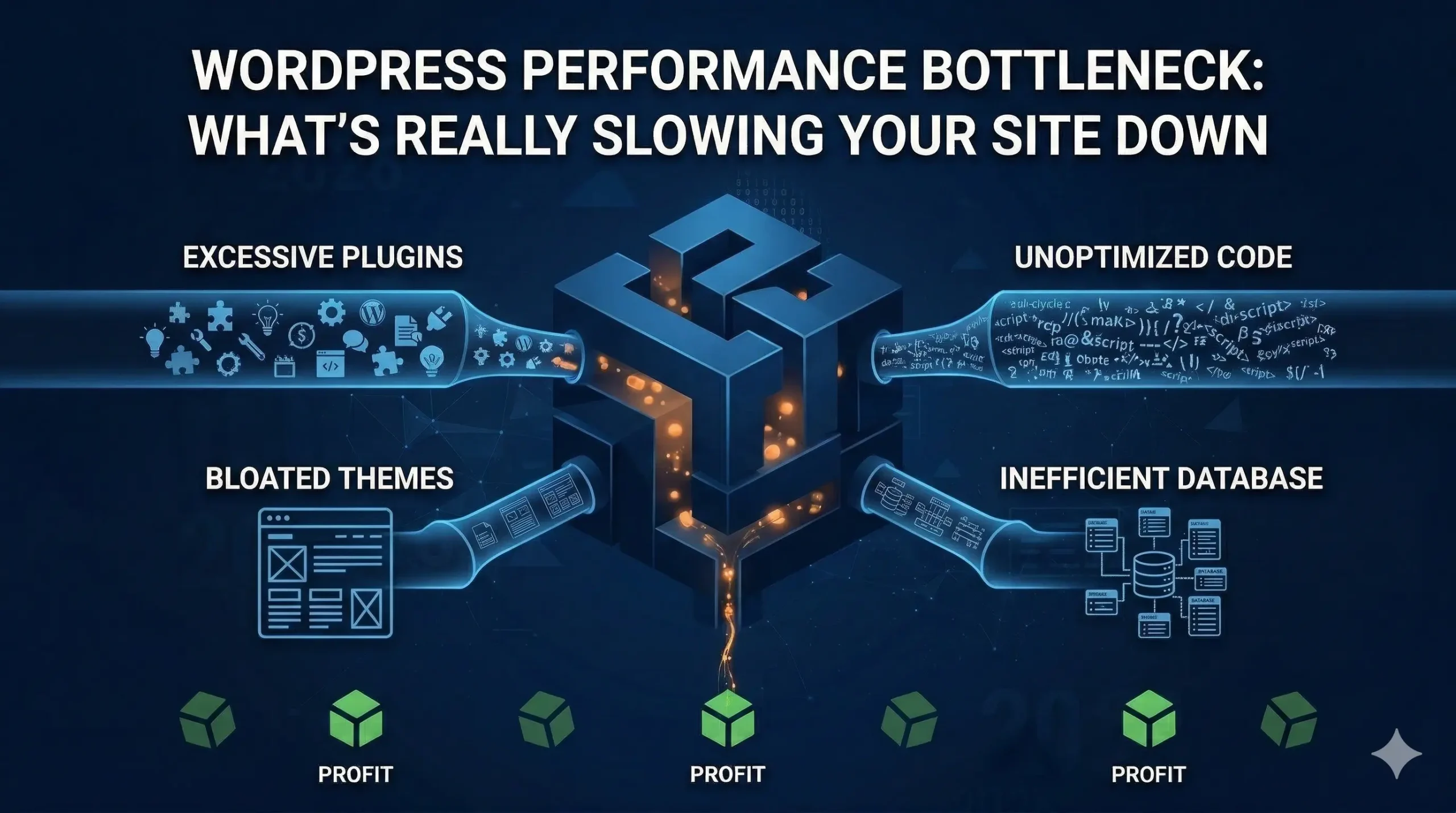
Your WordPress site is slow. You can feel it every time you reload a page, and your analytics probably confirm what you already suspect. Visitors are leaving before they ever see your content. The frustrating part? WordPress itself is rarely the problem. A WordPress performance bottleneck is almost always something specific: a misconfigured server, a rogue plugin, a bloated theme, or a database that’s never been cleaned up. Finding it is the hard part. Fixing it is usually straightforward, once you know where to look.
This isn’t a generic “speed up your website” checklist. This is a direct, technical breakdown of the most common WordPress performance bottlenecks: where they come from, what they actually cost you, and what you need to do about each one. Whether you’re running a business site, a WooCommerce store, or a high-traffic blog, the same culprits keep showing up.
Why One Bottleneck Can Wreck an Otherwise Fine Website
Performance is a chain. Your site can have great hosting, a clean codebase, and well-optimised images, and still crawl if one weak link exists. A single slow database query, for example, can block every page load across your entire site. One unoptimised third-party script can delay your Largest Contentful Paint by two or three seconds, even if every other element loads instantly.
Google measures this precisely. Core Web Vitals (LCP, INP, and CLS) are part of Google’s ranking signals, and any one of them can drag your search visibility down if the number is bad enough. If you haven’t looked at your Core Web Vitals recently, check out this breakdown on how Core Web Vitals directly impact your SEO and conversions in 2026. The connection between performance and revenue is more direct than most people realise.
The goal of this article is to help you identify your specific bottleneck, not just tell you to “install a caching plugin” and call it done.
The Most Common WordPress Performance Bottlenecks (And What Causes Them)
Your Hosting Environment Is the Foundation, and Often the Fault
Shared hosting is the silent killer of WordPress performance. When you’re on a shared plan, your site competes for CPU, RAM, and I/O with dozens or hundreds of other sites on the same physical server. You can do everything else right and still see Time to First Byte (TTFB) numbers above 800ms, which is a problem before a single image or script even loads.
The fix here isn’t always expensive. Moving to a managed WordPress host with dedicated resources, or even a well-configured VPS with PHP 8.2+, can cut TTFB by 60–70% without touching a line of code. If you’re running a WooCommerce store and experiencing unexplained slowdowns during high traffic periods, the real cost of inadequate hosting during peak traffic is worth reading before your next sale season.
Outdated PHP and Poor Server Configuration
PHP version matters more than most site owners know. PHP 8.2 is roughly twice as fast as PHP 7.4 on standard WordPress workloads. If your host is still running your site on PHP 7.x, which is end-of-life and no longer receiving security updates, you’re not just leaving performance on the table. You’re running an unnecessary security risk.
Beyond PHP version, check that your server has OPcache enabled. OPcache stores compiled PHP bytecode in memory so WordPress doesn’t have to recompile scripts on every request. It’s free, built into PHP, and makes an enormous difference on busy sites. If you’re unsure whether it’s active, a quick server info check or a conversation with your host will tell you.
A Bloated, Unindexed Database
WordPress stores everything in MySQL: posts, options, revisions, transients, metadata, user data. Over time, especially on older sites or active WooCommerce shops, that database grows into a chaotic mess of orphaned data, thousands of post revisions nobody asked for, and expired transients that pile up because nothing ever cleans them out.
Slow database queries are one of the hardest WordPress performance bottlenecks to diagnose because they don’t always look obvious. A page might display fine but take 2–3 seconds to generate because WordPress is running 80+ queries behind the scenes. Tools like Query Monitor (a free plugin) will show you exactly which queries are slow and which plugins or theme functions are responsible.
Regular database maintenance, including limiting post revisions, purging expired transients, and running OPTIMIZE TABLE on large tables, can recover significant performance on any site that’s been live for more than a year. This is one of the things covered in the WordPress performance optimisation checklist if you want the full picture.
Too Many Plugins, or the Wrong Ones
Plugin bloat is the WordPress performance bottleneck that developers talk about most, and it’s also the most misunderstood. It’s not just about the number of plugins. It’s about what those plugins load. A single poorly-coded plugin can add five external HTTP requests, three stylesheets, and two JavaScript files to every single page on your site, including pages where the plugin does nothing at all.
The audit process here involves checking what each plugin actually loads site-wide versus conditionally. Plugins that load resources everywhere when they’re only needed on one page (a contact form plugin loading scripts on your homepage, for instance) should be either configured to load conditionally or replaced with a leaner alternative.
Page builders deserve a special mention. Visual builders like Elementor and Divi produce notoriously heavy markup and load significant CSS/JS overhead. If your site was built with one of these and performance is suffering, it’s often worth having a developer review the front-end output. In some cases, a custom-built theme is the more practical long-term answer.
Unoptimised Images and No Lazy Loading
Images are still the single largest contributor to page weight on most WordPress sites. A homepage hero image uploaded at 4MB, scaled down via CSS, but never actually compressed, will destroy your LCP score every time. Modern image formats like WebP and AVIF can reduce file size by 30–50% compared to JPEG at equivalent visual quality, and WordPress 5.8+ natively supports WebP.
Lazy loading is the other half of this. Images below the fold should not load on page initialisation. They should load as the user scrolls toward them. WordPress added native lazy loading in version 5.5, but themes and builders sometimes override this behaviour. A quick check with Chrome DevTools or WebPageTest will show you whether images are actually being deferred.
No Caching, or Misconfigured Caching
WordPress is dynamic by default. Every page request triggers PHP execution and database queries from scratch. For most content, your About page, your blog posts, your service pages, there’s no reason this has to happen on every single visit. Caching stores a pre-built HTML version of your pages and serves that to repeat visitors, skipping the server-side processing entirely.
The problem isn’t usually that sites have no caching. It’s that caching is set up incorrectly. WooCommerce cart pages and checkout pages must never be cached. User-specific pages (logged-in users, for example) need separate cache rules. If your cache plugin is too aggressive, users will see stale data. If it’s too conservative, you won’t see much benefit. Getting caching right requires understanding the difference between page cache, object cache, browser cache, and CDN cache, and each has a different job to do.
Render-Blocking JavaScript and CSS
When a browser parses your HTML and encounters a script or stylesheet in the document head, it stops rendering the page until that resource finishes loading and executing. This is called render-blocking, and it’s why a page can feel blank for 2–3 seconds even if the server responded quickly.
The fix involves deferring non-critical JavaScript so it loads after the main content, inlining critical CSS (the styles needed for above-the-fold content) directly in the HTML, and moving everything else below the fold. Google’s PageSpeed Insights will flag render-blocking resources specifically, and this is one area where a proper technical audit pays for itself quickly.
No CDN or Poor CDN Configuration
A Content Delivery Network caches static assets like images, scripts, and stylesheets on servers distributed globally. When a visitor in Mumbai loads your site hosted in the US, a CDN serves those assets from a nearby node instead of routing the request all the way across the ocean. The latency savings are significant, often 200–400ms per page load for international visitors.
Many businesses skip this step because they assume it’s complicated or expensive. Free tiers from Cloudflare can cover most small-to-medium sites effectively. The bigger issue is configuration. A CDN that’s caching the wrong things (dynamic pages, for example) or not caching enough will produce inconsistent results and sometimes actually hurt performance.
When Optimisation Isn’t Enough: The Case for Going Headless
There are sites where individual bottleneck fixes produce diminishing returns. A high-traffic WooCommerce store, a site with complex dynamic personalisation, or a business running WordPress as a content hub feeding multiple front-ends. These often reach the architectural limits of traditional WordPress before they reach the limits of what’s technically possible.
Headless WordPress separates the content management layer (WordPress as a CMS, accessed via REST or GraphQL API) from the front-end delivery layer (a React or Next.js application that serves the actual pages). The result is a front-end that can achieve static-site-level performance scores while retaining the full flexibility of WordPress on the back end. No PHP execution on page load. No plugin overhead affecting the user-facing site.
The CEO’s guide to headless WordPress covers this in plain terms, walking through who it’s right for, what the trade-offs actually look like, and what it costs to build versus maintain. It’s worth reading if you’ve already done the standard optimisation work and your scores still aren’t where they need to be.
If you’re comparing your current traditional WordPress setup against what a headless architecture would actually look like in practice, this breakdown of traditional WordPress speed versus headless WordPress is the most direct comparison available.
How to Actually Find Your Specific Bottleneck
Guessing is expensive. Running through a 50-point checklist without knowing what you’re targeting wastes time and sometimes makes things worse (aggressive caching on a WooCommerce site without proper exclusion rules, for example, is a common self-inflicted wound).
Start with a waterfall analysis. Tools like WebPageTest give you a request-by-request timeline showing exactly which resources load, in what order, and how long each one takes. The TTFB (Time to First Byte) metric tells you about server and hosting issues. The waterfall view shows render-blocking resources, oversized assets, and third-party script delays. Combined with Query Monitor inside WordPress, you get a complete picture covering both the server side and the front-end side.
Once you know which category your bottleneck falls into, the fix becomes much more targeted. Not “optimise your images” in general, but “this specific hero image on this specific template is loading at 3.2MB and is not being lazy-loaded because of this specific theme function.” That level of specificity is what separates a one-hour fix from a week of trial and error.
Getting a WordPress Performance Bottleneck Fixed Properly
Most WordPress performance work goes wrong because it’s done in isolation. An SEO consultant runs a Lighthouse audit and sends over a list of recommendations. A developer implements half of them without understanding the WooCommerce session logic. Caching breaks the checkout. Now you’ve traded a slow site for a broken one.
Bugs Monkey approaches WordPress performance the same way a good mechanic approaches a car. Diagnose first, fix with precision, test under real conditions before calling it done. The WordPress development work covers everything from targeted performance audits to full rebuilds, including custom theme architecture, plugin audits, server-level configuration, database optimisation, and caching strategy built around your specific site, not a generic template.
For businesses where traditional WordPress has genuinely reached its architectural ceiling, the headless WordPress service handles the full transition, from GraphQL API setup to React front-end build, without disrupting your existing content or editorial workflow.
Performance isn’t a one-time project, either. Sites evolve. Plugins update and introduce new overhead. Traffic patterns shift. What’s optimised today can develop new bottlenecks six months from now if nobody’s watching. Ongoing monitoring and maintenance is part of what keeps a high-performing site performing.
Ready to Find What’s Actually Slowing You Down?
If you’re seeing slow load times, declining search rankings, or a bounce rate that tells you people aren’t waiting around, there’s a specific reason, and it’s fixable. You don’t need a full site rebuild to get there. You need an accurate diagnosis and targeted work from people who’ve done this before.
Start the conversation here. Tell us what you’re seeing and what you’ve already tried. The bottleneck will become clear quickly.